

v in Rakumux mode. It applies at once to
the window you’re in; every start opens Master detail.
Master detail
The default. The session list sits in a column on the left, and the selected session’s terminal fills the right from its top row. Drag the line between them to resize the list.-
The Feed (
f) docks on the right of the session, the session narrowing to make room; drag the line on its left to resize it. It docks while the session keeps 60 columns beside it; in a narrower window it takes the session’s place in Rakumux mode only. See Agent feed. -
Hide the list with
bor « Hide list at the bottom of the list (100 columns or more): the session takes its columns, and a narrow rail with » at the left edge brings it back. The list keys still move through the sessions while it’s hidden. -
Narrow windows (80 to 100 columns, such as a split window): the list goes on top and the
selected session below it, so you see it while you pick one. Drag the line between them up or down
to resize. Once you press
Enter, the session fills the screen;Ctrl-\brings the list back. - Short windows (under 16 rows): only the list shows in Rakumux mode.
Grid
A page of up to six cards, each showing a real, live terminal as a read-only observer. It’s the way to watch several long-running agents at once.- Arrows or
h/j/k/lselect cards,PgUp/PgDnchange page, andHome/Endgo to the ends. Enteror a tap opens the selected session full screen under a row of tabs;Ctrl-\returns to Grid.nor the + New session card creates and enters a session immediately.Pand/filter folders and text, and pins and your session order apply.fshows the Feed beside the cards.
Tabs
Sessions appear as a row of numbered tabs across the top, and the selected tab’s session fills the rest of the screen. Long names are shortened with…, and ‹ or › show that more tabs are hidden
on that side. Switch tabs with ↑/↓, j/k, the number keys or a click, and drag a tab to move
it. The active list tab’s filter shows at the left. Every other key works as in Master detail.
The Feed is the first tab, before a │, with its count of new turns; selected, it shows the cards
and, from 100 columns, the selected turn beside them.
Zoom
z in Rakumux mode works in the selected session with the list or tab bar hidden, so it gets the
whole screen above the footer. Ctrl-\ brings the list back. It works in every layout.
Phones
Below 80 columns (phone terminals are about 40 to 60 columns in portrait) Rakumux offers Master detail and Tabs, not Grid, and shows one thing at a time:- Master detail: Rakumux mode is the session list. Tap a session to open it full screen under a row of tabs, one per session; tap a tab to switch.
- Tabs: keeps the row of tabs over the selected session in Rakumux mode too.
Ctrl-\, or a tap on SESSION MODE in the footer, goes back to the list; RAKUMUX MODE
returns to the session. f (or f ≡ Feed) shows the Feed in the list’s place, and Esc goes back.
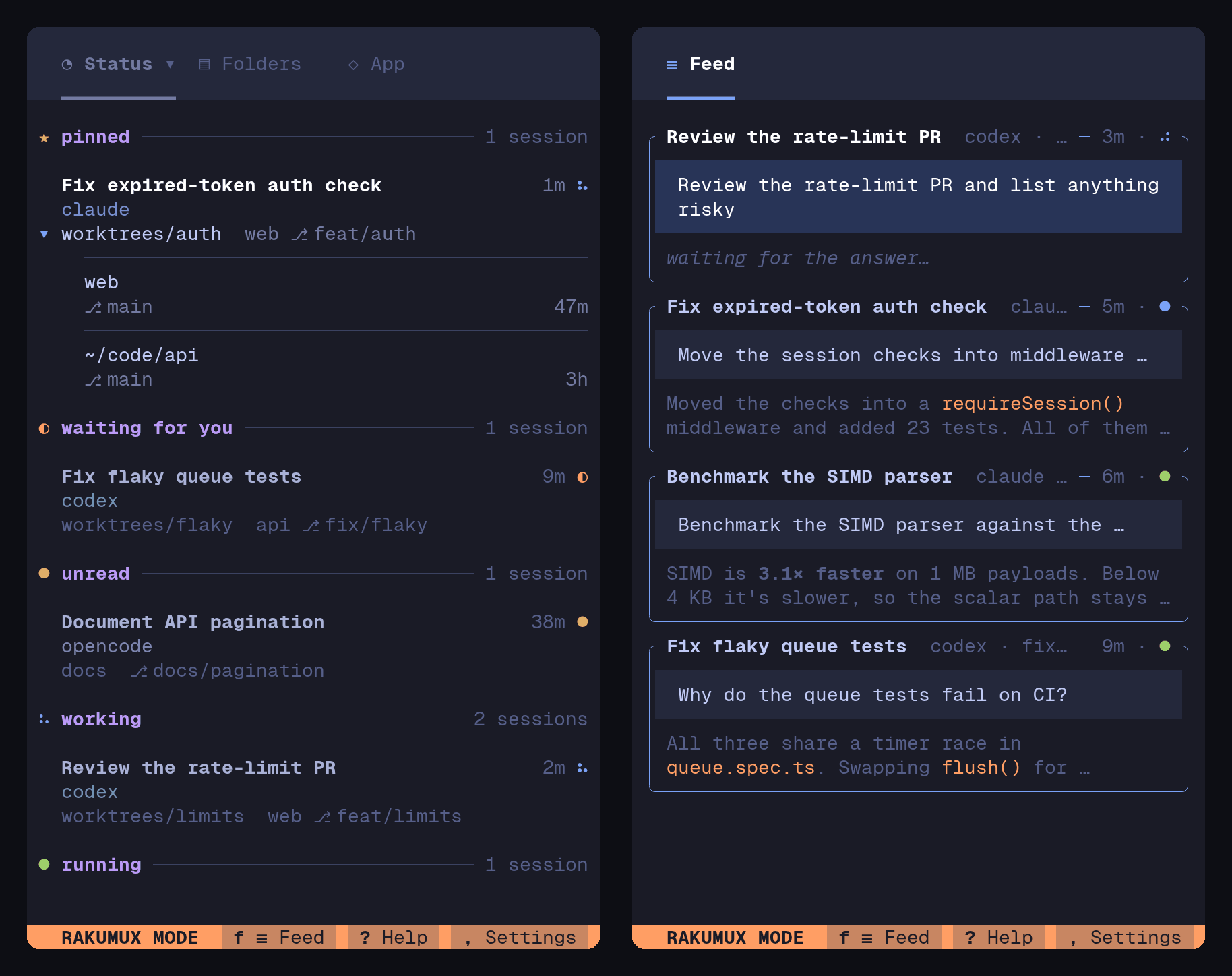
The footer
The bottom row is always visible:- On the left, the session in view, with its status mark:
session: ● name(the selected card’s while the Feed has the keys), then messages, and the server connection when it isn’t up. - In the centre, the mode: RAKUMUX MODE (an orange bar), or SESSION MODE or TERMINAL MODE while a program takes your keys (a muted blue bar).
- On the right, buttons: f ≡ Feed (with the number of new turns while it’s hidden), ? Help and , Settings in Rakumux mode, then a Sign in while you’re signed out of your Rakumux account (a ✓ Signed in once you are); *Ctrl-* alone in a session.